
1. Introduction
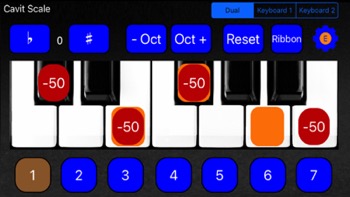
Cavit Scale is an app for Apple iPhone or iPad that controls Arabic quartertones on keyboard from various keyboard manufacturers. The functions are dependent on Cavit editions. Core features are Arabic quartertones, transpose +/-, octaver up/ down and ribbon controller. There are 4 product editions. These are Cavit Scale 4SP, Cavit Scale CP, Cavit Scale Premuim Edition, Cavit Scale Ultimate.2. Interfaces
Cavit Scale has 2 ways to connect to the keyboard. The first is via Bluetooth the second is via cable. The brand are listed in the following chapters. The application to be used in conjunction with compatible interfaces. Do not change the Name of you Bluetooth device.2.1. Yamaha MD-BT01 Interface (Bluetooth)
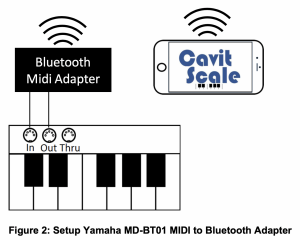
This Bluetooth interface is compatible to Cavit Scale app and have to be connected to the midi in and out port at the keyboard.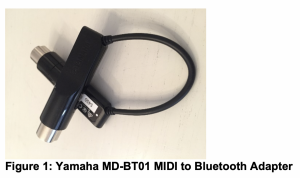
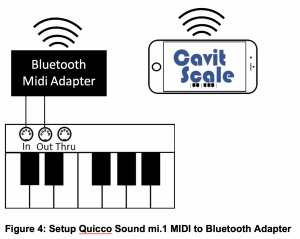
2.2. Quicco Sound mi.1 Interface (Bluetooth)
This Bluetooth interface is compatible to Cavit Scale app and have to be connected to the midi in and out port at the keyboard.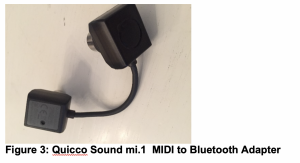
2.3. Apple Lightning to USB Camera Adapter (Cable)
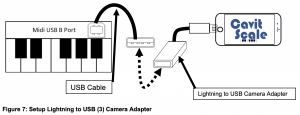
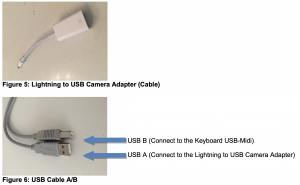
This Cable interface is compatible to Cavit Scale app and have to be connected to the to the iPhone/iPad Device and the keyboard. USB Cable A port have to be connected with USB Lightning to Camera Adapter. USB Cable B port have to be connected with USB-Midi port at the keyboard You can use following cable:- Apple Lightning to USB Camera Adapter
- Apple Lightning to USB 3 Camera Adapter (with Litghning Power Adapter)
3. Setup
3.1.Cavit Scale Ultimate
- Press Keyboard 1 or Keykoard 2 to select your Keyboard (do not select it twice as here).
- Touch to the Default value to setup the Microtuning Default.
- The Scale Bank Proctection have to switched be „Off“ to save you Microtuning Scale in Bank 1 to 7.
- Upper 2&3 option sould switched be „On“ if your Keyboard has sounds on Upper 2&3. If „Upper 2&3 = Off“ Trill/Autopitch options only send on Upper 1.
- Press SWAM Scale & Trill Channel to select SWAM instrument
- Press SWAM Scale & Trill Channel to select your Keyboard Connection or Bluetooth Interface Device
3.1.5. SWAM Audio Modeling

Cavit Scale Ultimate (with Cavit Scale Version 3.25, SWAM Instrumens Version 3.6.0 and up) supports the the big colletion of SWAM Instruments such as microtuning, transpose, pitchbending on all operating systems supported by SWAM Audiomodeling such as iOS, MacOS and others. For more informations, please visit Audio Modeling’s website https://www.audiomodeling.com. Please check also the following „Cavit Scale Ultimate“ settings for SWAM Instruments:
- Set SWAM to „Emotion Transpose = On“, if you use Cavit Scale Ultimate Trill/Autopitch options should to transpose. If the conected Keyboard handle tanspose select „Scale Transpose = Off“.
- Set SWAM to „Scale Transpose = On“ if Cavit Scale app should to transpose it. If the conected Keyboard handle tanspose select „Scale Transpose = Off“. In this case transpose SWAM Instruments and your connected Keyboard via Cavit Scale Instruments.
- Select „SWAM Scale & Trill“ Channel to enable the side by side communtion between SWAM Instruments and „Cavit Scale Ultimate“.
SWAM Preset Import
Import the appropriate preset for each SWAM application and Midilow Import. The video demonstrates the necessary settings for importing the violin preset. These steps must be performed identically for the other SWAM instruments.- SWAM Solo Instruments
- Cavit Scale Violin Setlist
- Cavit Scale Viola Setlist
- Cavit Scale Cello Setlis
- Cavit Scale Double Bass Setlist
- Cavit Scale Flut Setlist
- SWAM String Section Instrument
- Cavit Scale Section Violin Setlist
- Cavit Scale Section Viola Setlist
- Cavit Scale Section Cello Setlist
- Cavit Scale Section Double Bass Setlist